Tutorial · About 5 minutes
Make your first deck, one card at a time
Type each flashcard yourself: the front, then the back. This guide builds a small Spanish colors deck, then shows you how to study it. The steps are the same on iPhone, Android and Knewly Web.
Have a list already? Start with a free deck instead, or paste a two-column list into Bulk Add.
Follow along
The sample deck
Use these five cards, or swap in your own words. The front is what you see first; the back is the answer.
| Front | Back |
|---|---|
| rojo | red |
| azul | blue |
| verde | green |
| amarillo | yellow |
| morado | purple |
Part 1
Create the deck
-
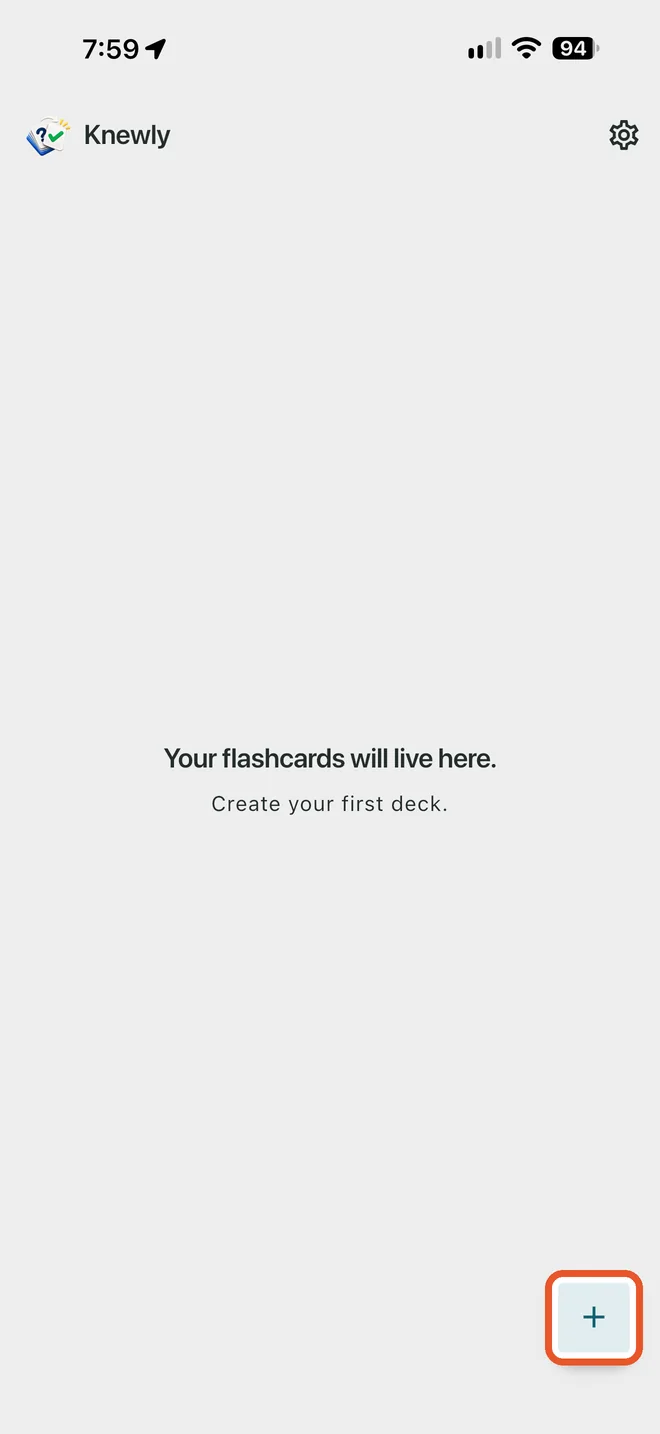 Step 1
Tap the + button
Open Knewly. On the Home screen, tap + in the bottom-right corner to create a new deck.
-
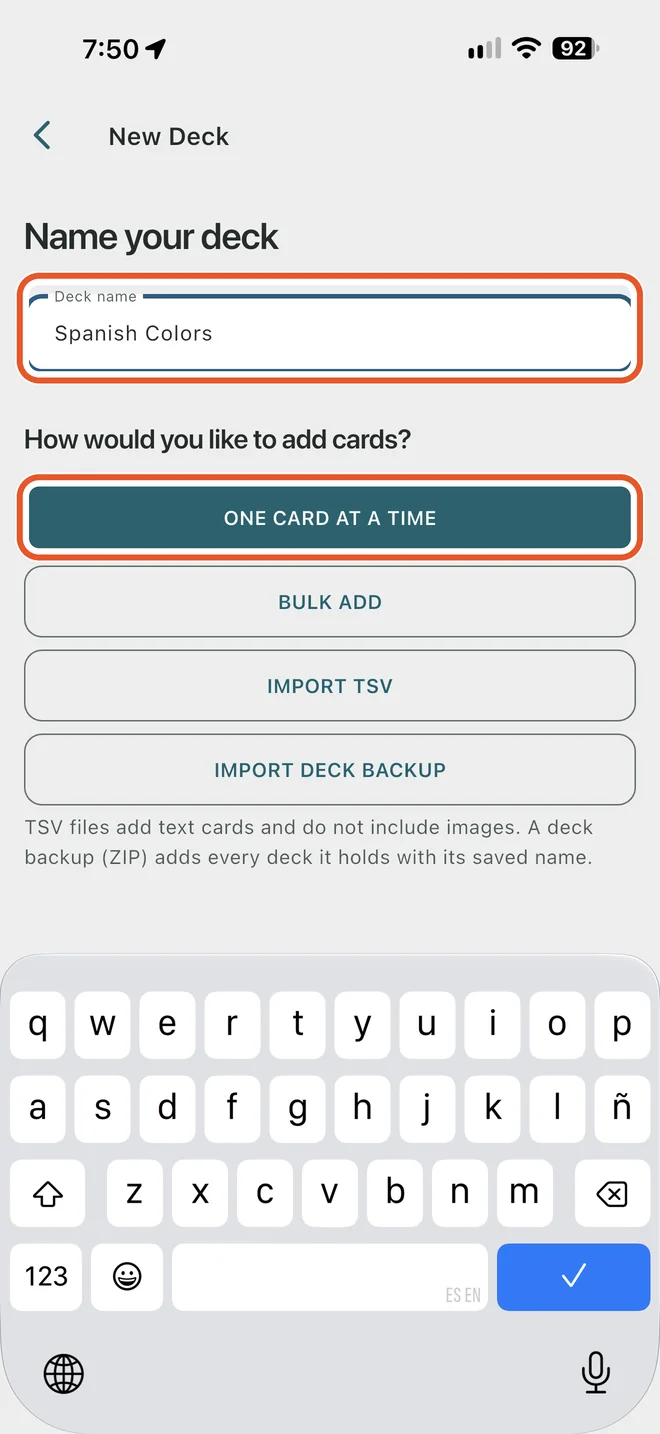 Step 2
Name your deck
Type a name, such as Spanish Colors. Under “How would you like to add cards?”, tap ONE CARD AT A TIME.
-
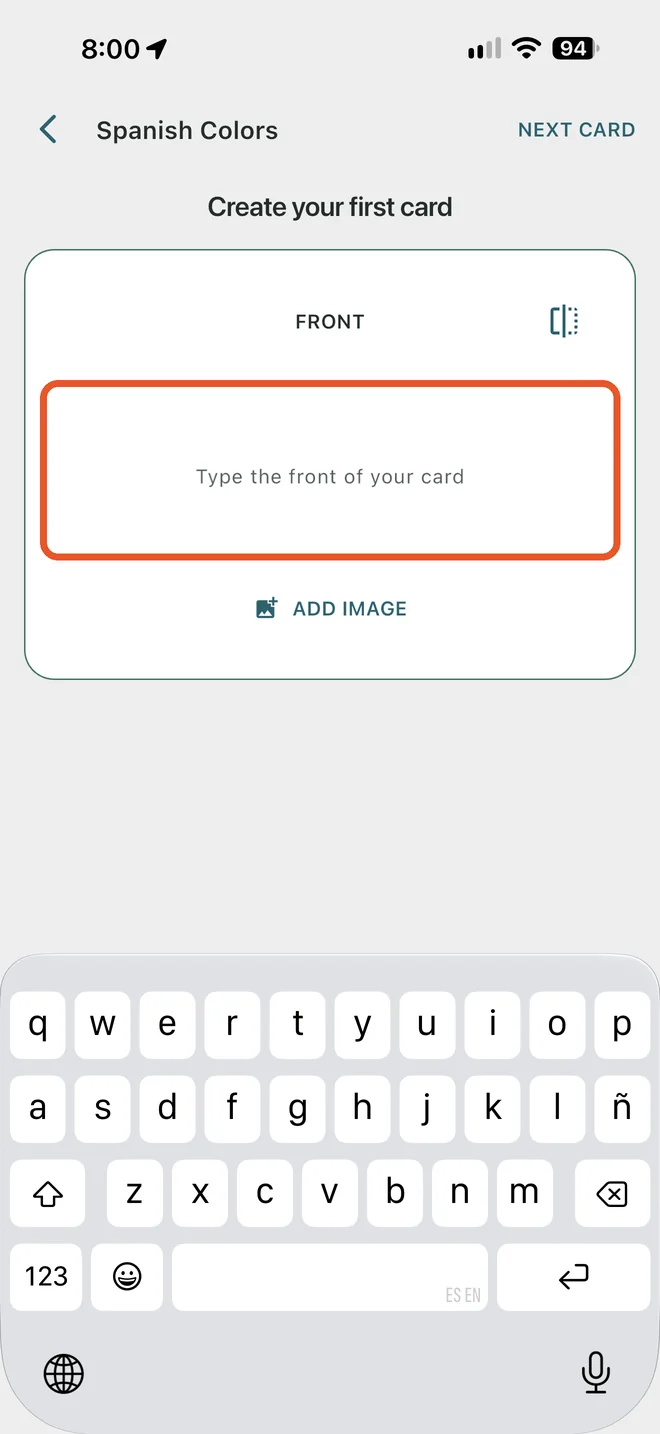 Step 3
Type the front of the card
The card editor opens on the FRONT. Type what you want to see first when you study. For the sample deck, type rojo.
-
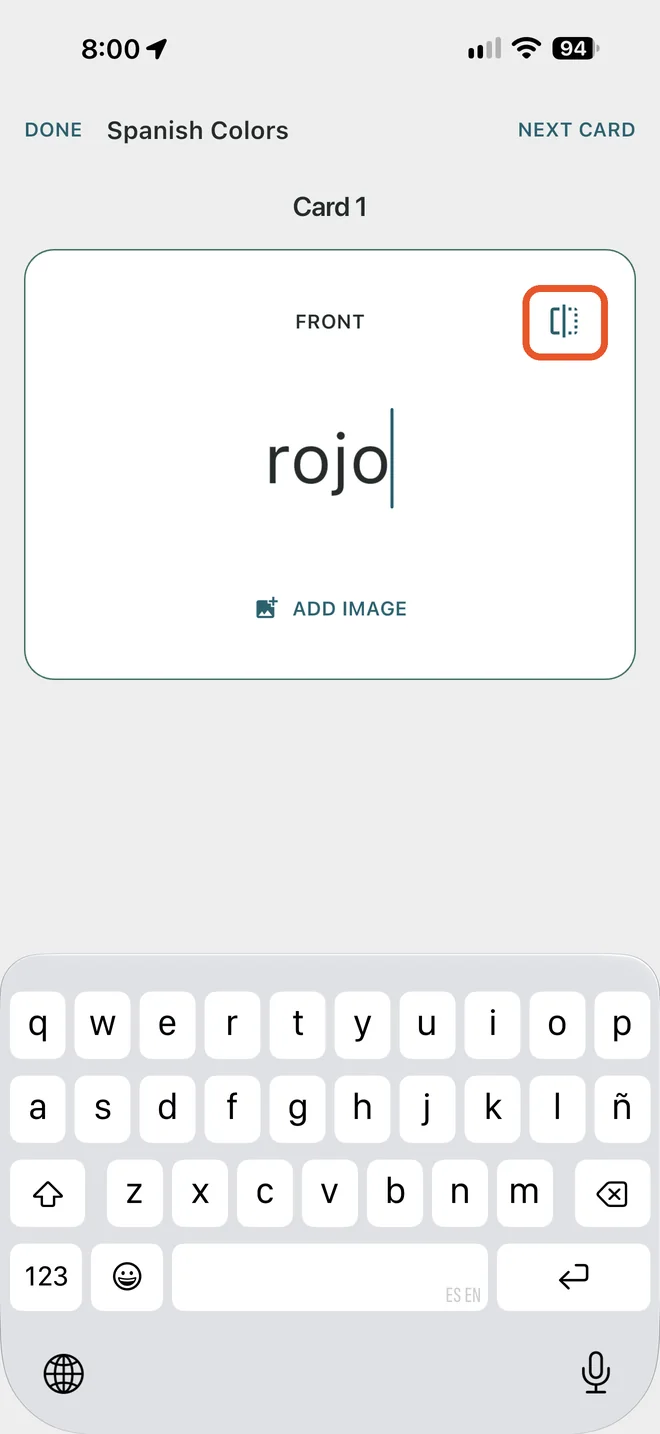 Step 4
Flip the card to the back
Tap the flip button in the top-right corner of the card. The card turns over to the BACK. You can tap it again anytime to check the front.
-
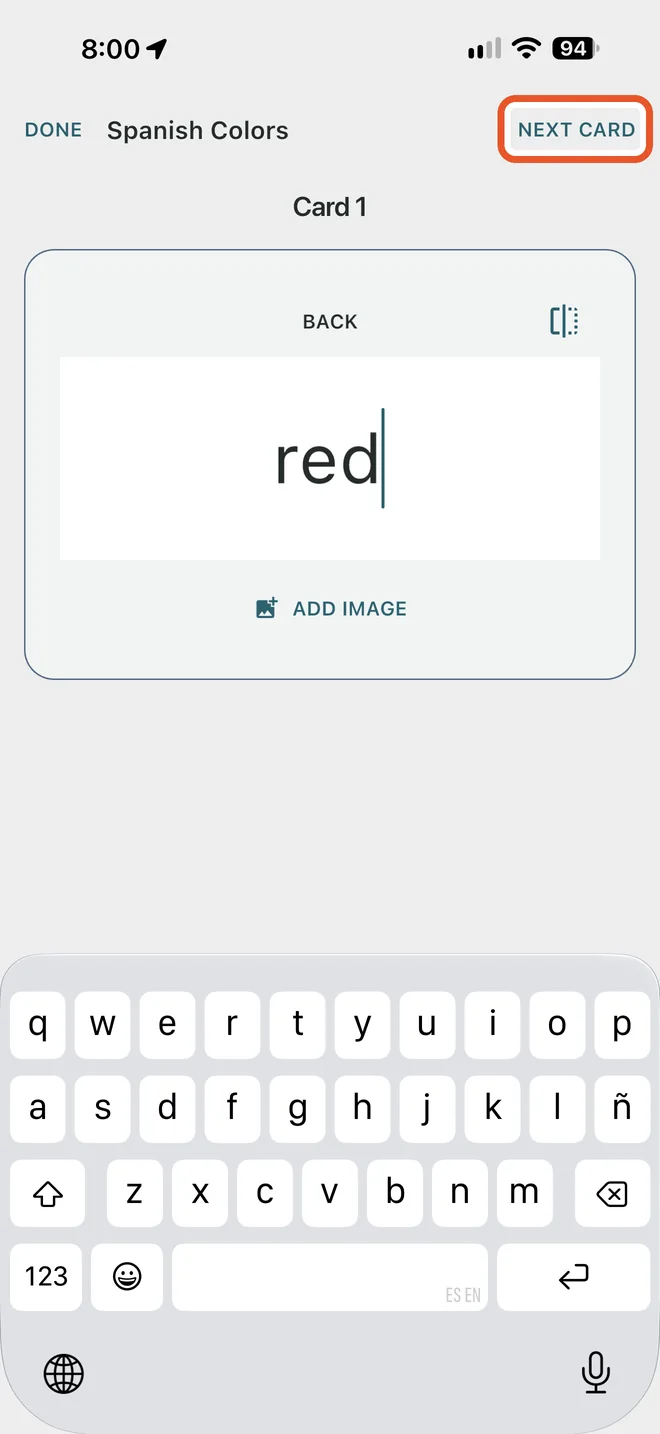 Step 5
Type the back, then tap NEXT CARD
Type the answer: red. Then tap NEXT CARD at the top right. Knewly saves the card and opens a blank one, ready for the next front.
-
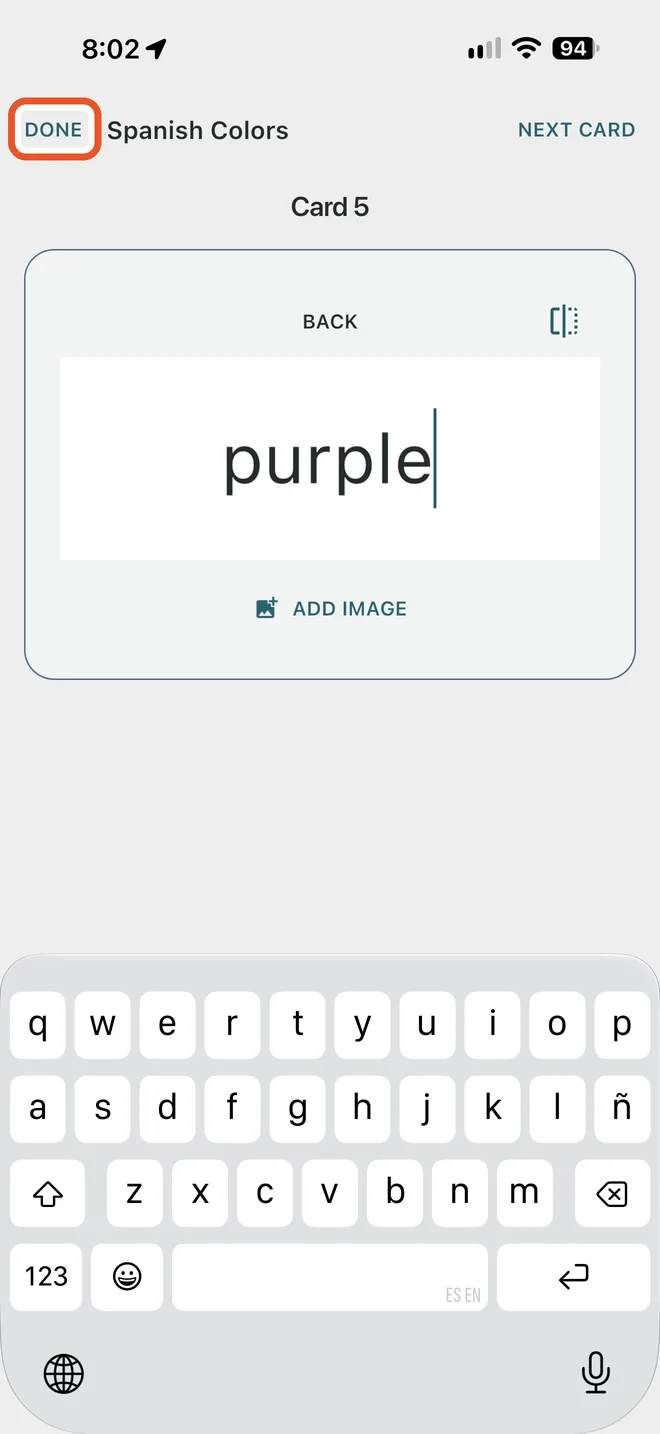 Step 6
Add the rest, then tap DONE
Repeat steps 3 to 5 for each card: type the front, flip, type the back, tap NEXT CARD. On your last card (morado / purple), tap DONE at the top left instead. Knewly saves that card and takes you back Home.
Part 2
Study your new deck
-
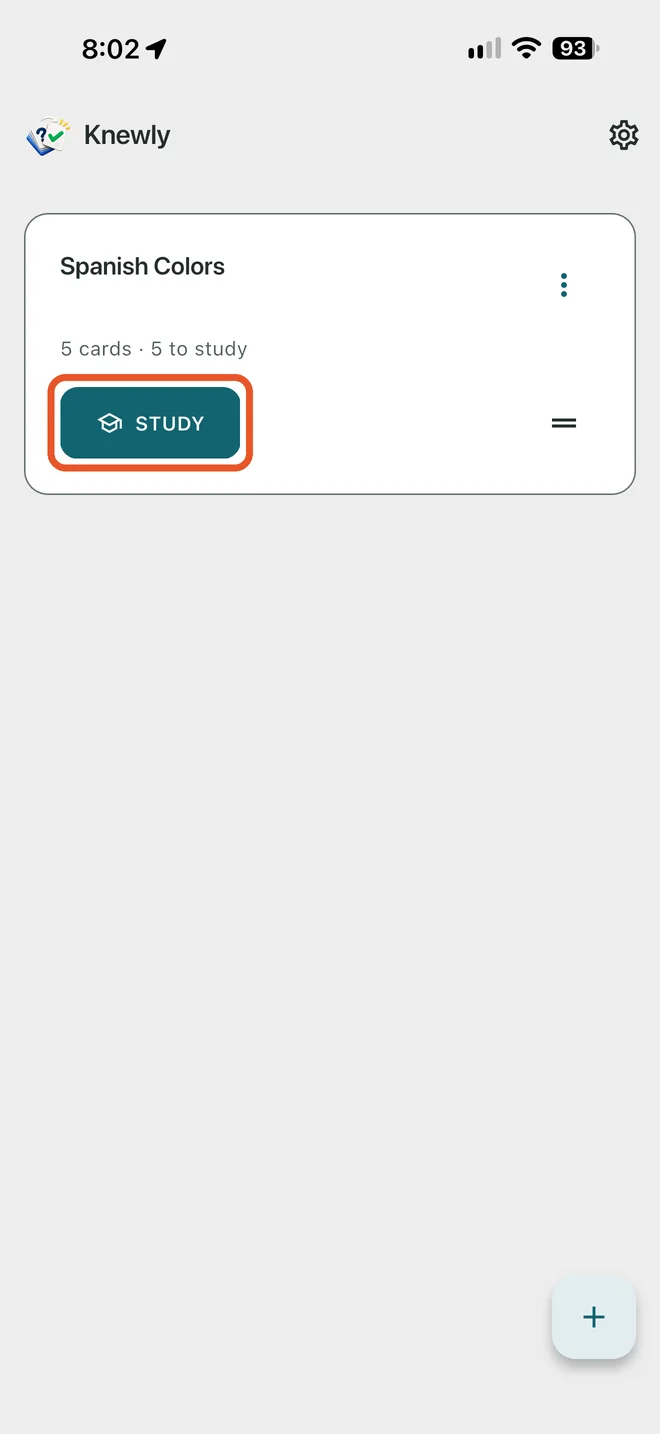 Step 7
Tap STUDY
Your deck now appears on the Home screen with its card count. Tap STUDY to start practicing right away.
-
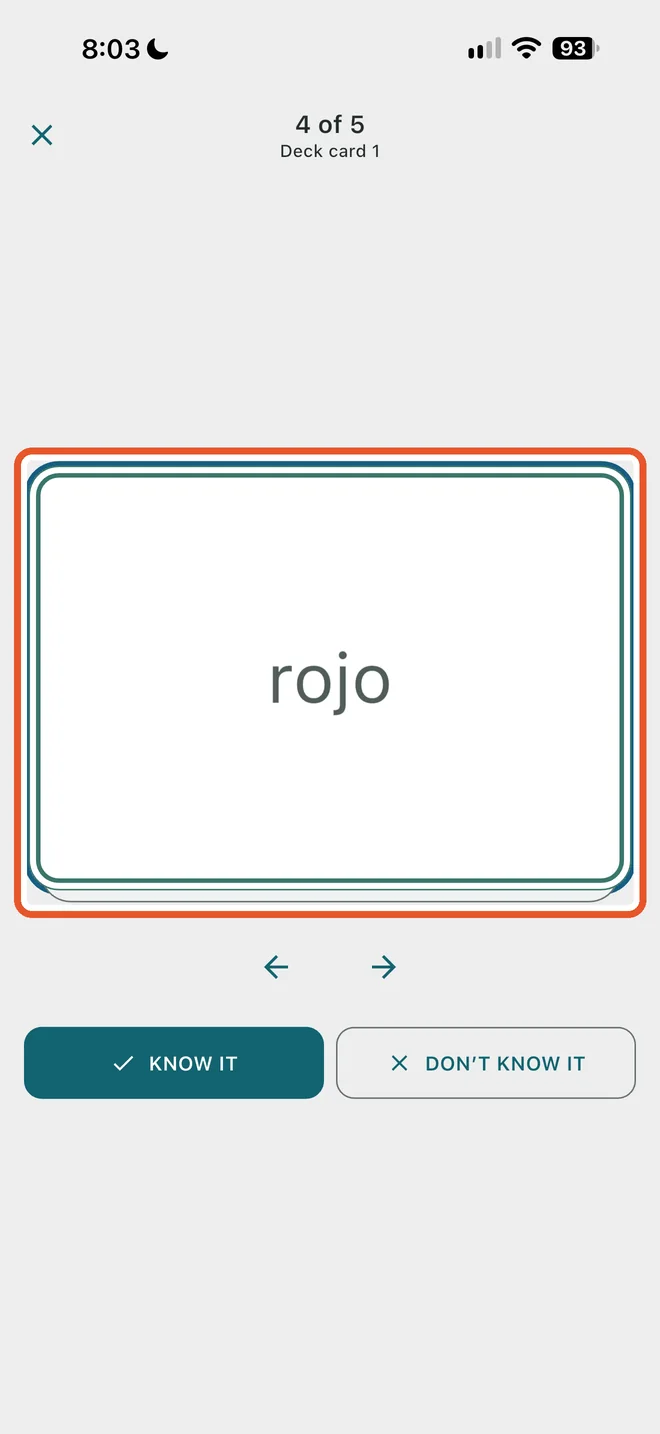 Step 8
Tap the card to flip it
Read the front and think of the answer. Then tap the card to see the back. The counter at the top shows how far you are through the deck.
-
 Step 9
Tap KNOW IT or DON’T KNOW IT
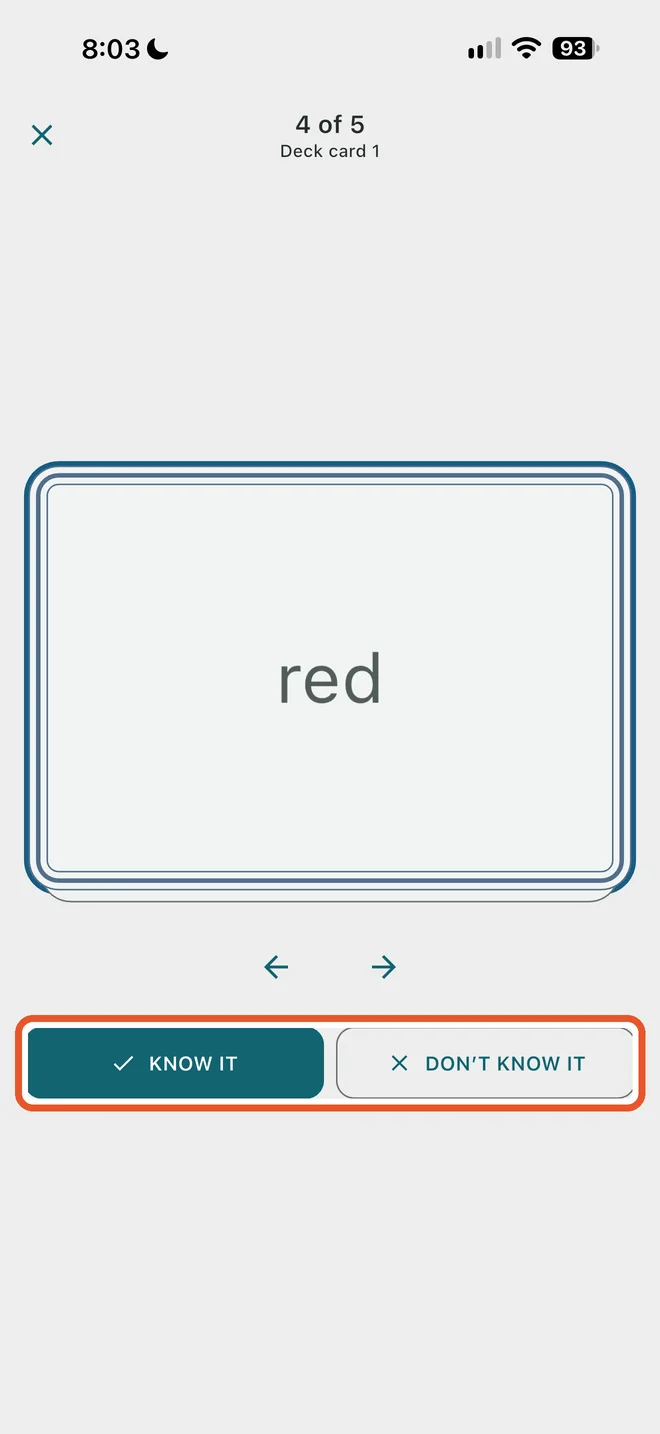
Be honest: tap KNOW IT if you got it, or DON’T KNOW IT if you didn’t. Knewly remembers your answer and moves to the next card. The arrows move between cards without marking them. You can also swipe left or right to navigate between cards.
-
 Step 10
See how you did
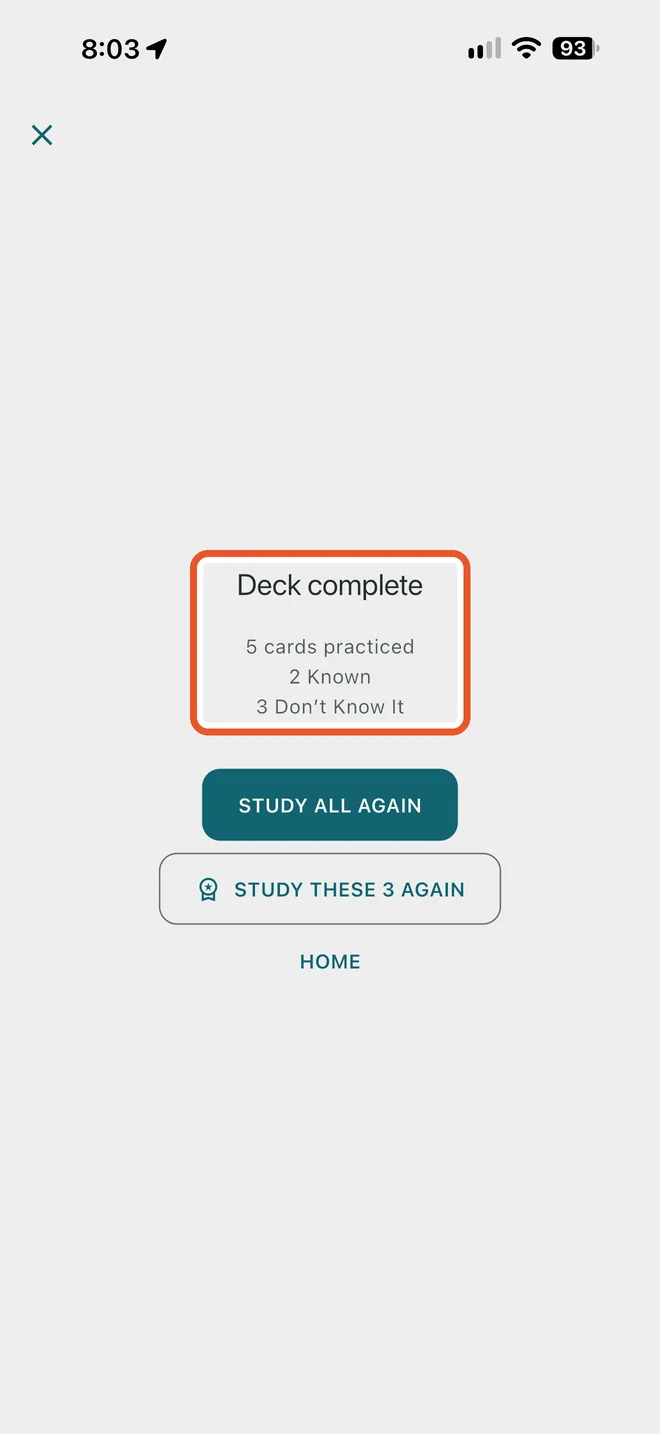
When you finish, Knewly shows how many cards you knew. Tap STUDY ALL AGAIN for another round, or HOME to stop. With Premium, you can also study just the cards you missed.
Later
Add more cards anytime
-
 Step 11
Open Edit Deck
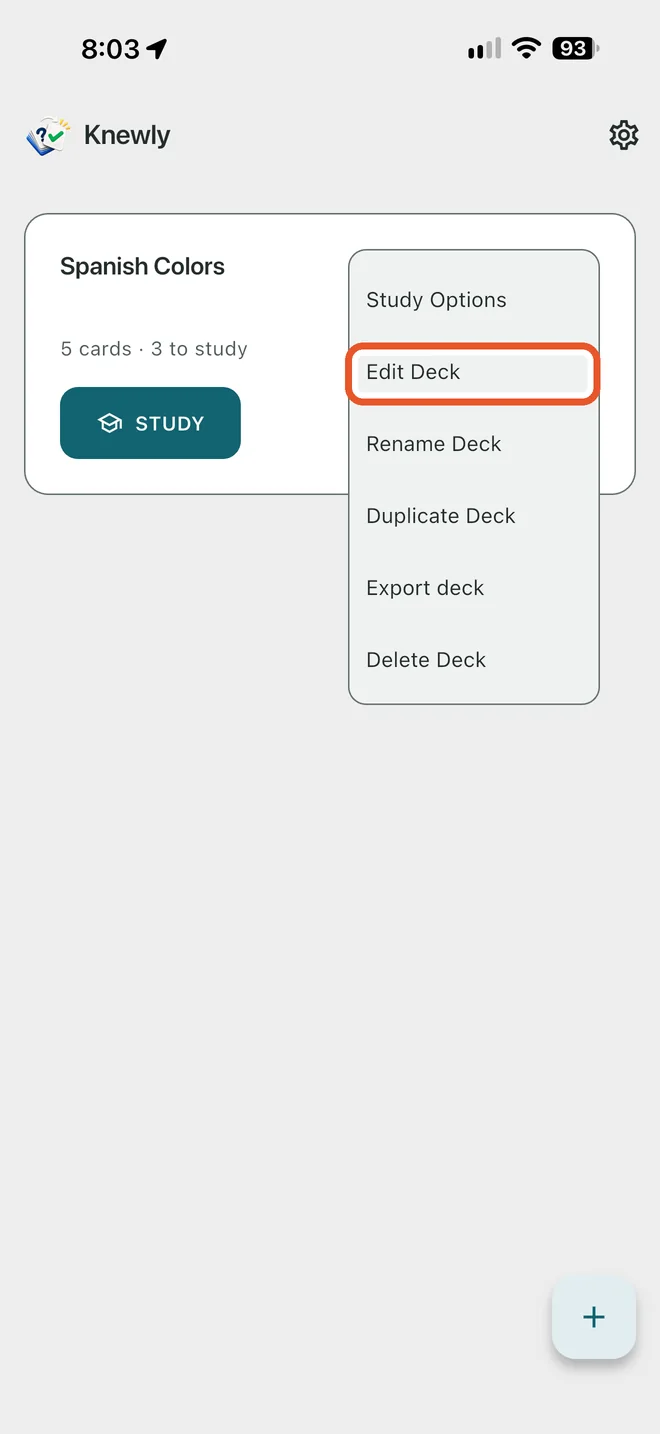
On the Home screen, tap the ⋮ menu on your deck, then tap Edit Deck.
-
 Step 12
Tap ADD CARD(S)
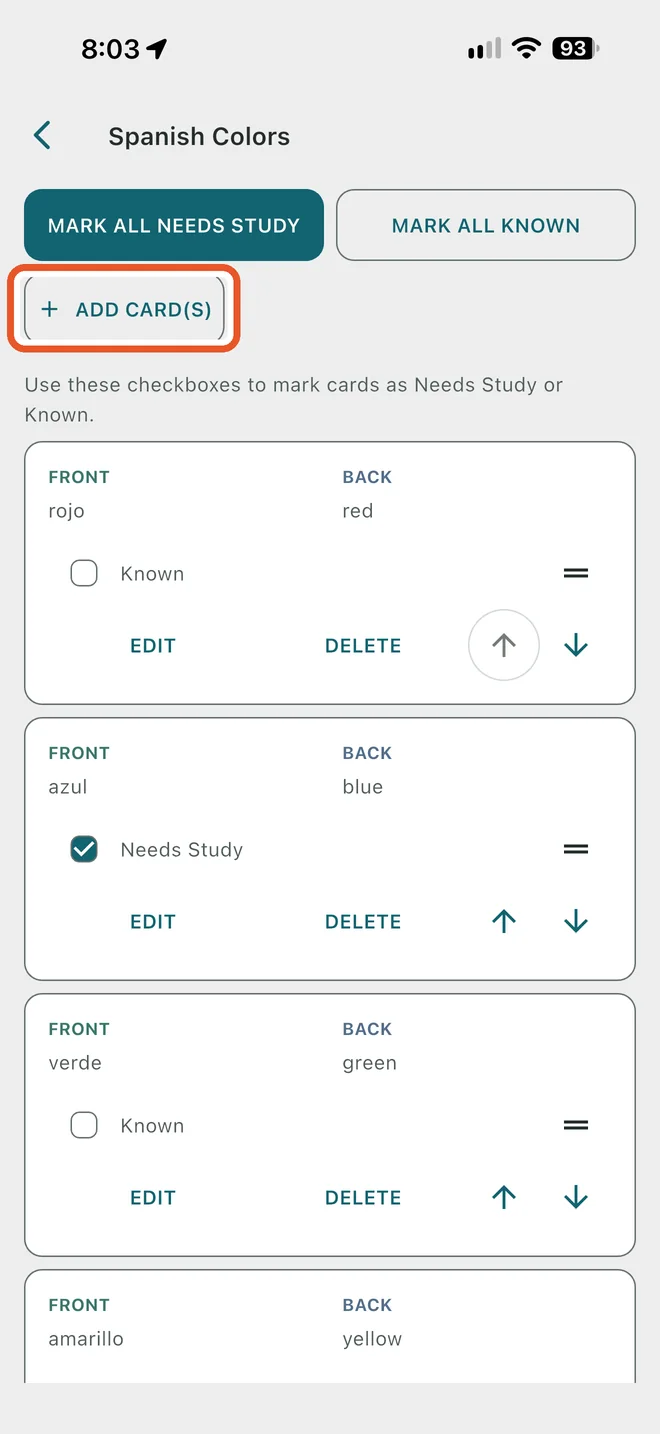
Tap ADD CARD(S) and choose One card at a time to keep adding cards the same way. This screen also lets you edit or delete a card, or mark cards Known or Needs Study.
Need more help?
That’s your first deck.
See more guides in the Help Center, or email support@midnightmonstera.com.
Back to the Help Center