Tutorial · About 5 minutes
Make a whole deck from a spreadsheet
Already have your words in a spreadsheet? Copy two columns and paste them into Bulk Add, and Knewly turns every row into a flashcard. This guide makes a 10-card Spanish numbers deck, then adds 5 more cards to it. It works with Google Sheets, Excel and Numbers, on iPhone, Android and Knewly Web.
New to Knewly? Start with making a deck one card at a time.
Follow along
The sample spreadsheet
Type these into a spreadsheet: fronts in column A, backs in column B, no header row. Part 1 uses rows 1 to 10; Part 2 adds rows 11 to 15.
| Column A (Front) | Column B (Back) |
|---|---|
| uno | one |
| dos | two |
| tres | three |
| cuatro | four |
| cinco | five |
| seis | six |
| siete | seven |
| ocho | eight |
| nueve | nine |
| diez | ten |
| once | eleven |
| doce | twelve |
| trece | thirteen |
| catorce | fourteen |
| quince | fifteen |
Part 1
Make a new deck from a spreadsheet
-
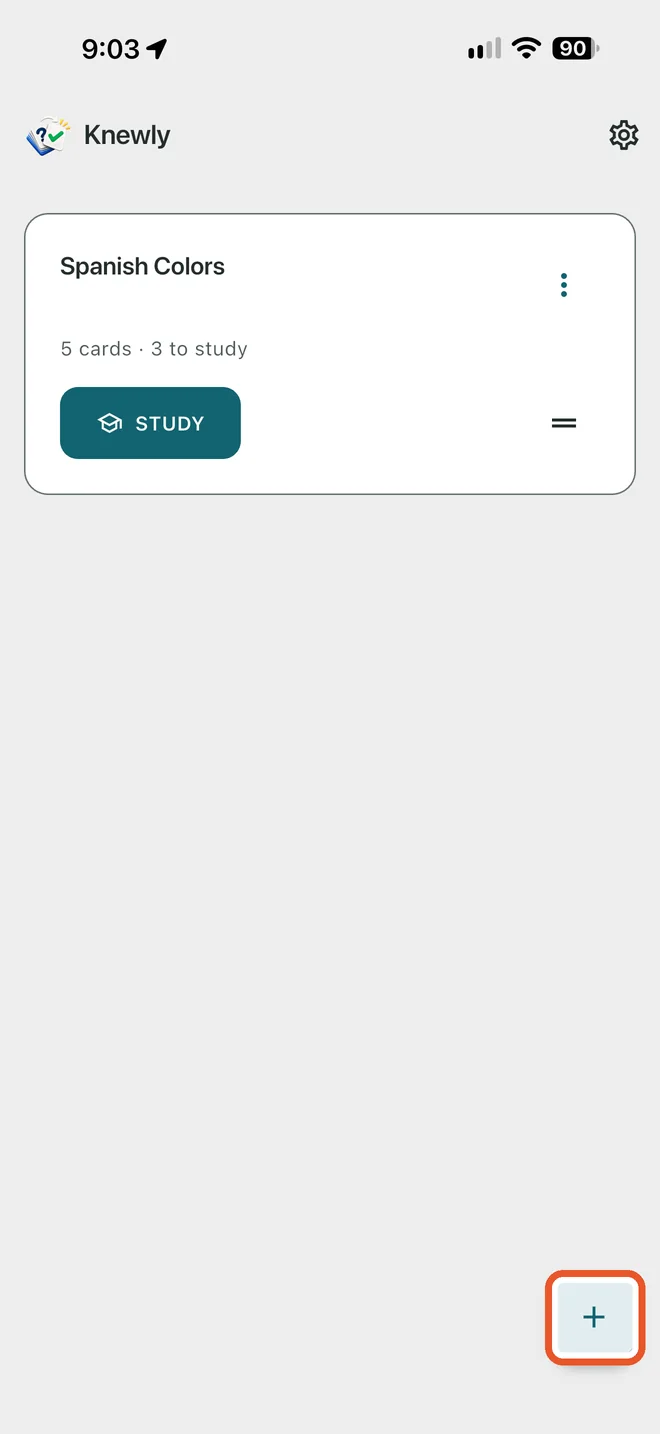 Step 1
Tap the + button
Open Knewly. On the Home screen, tap + in the bottom-right corner to create a new deck.
-
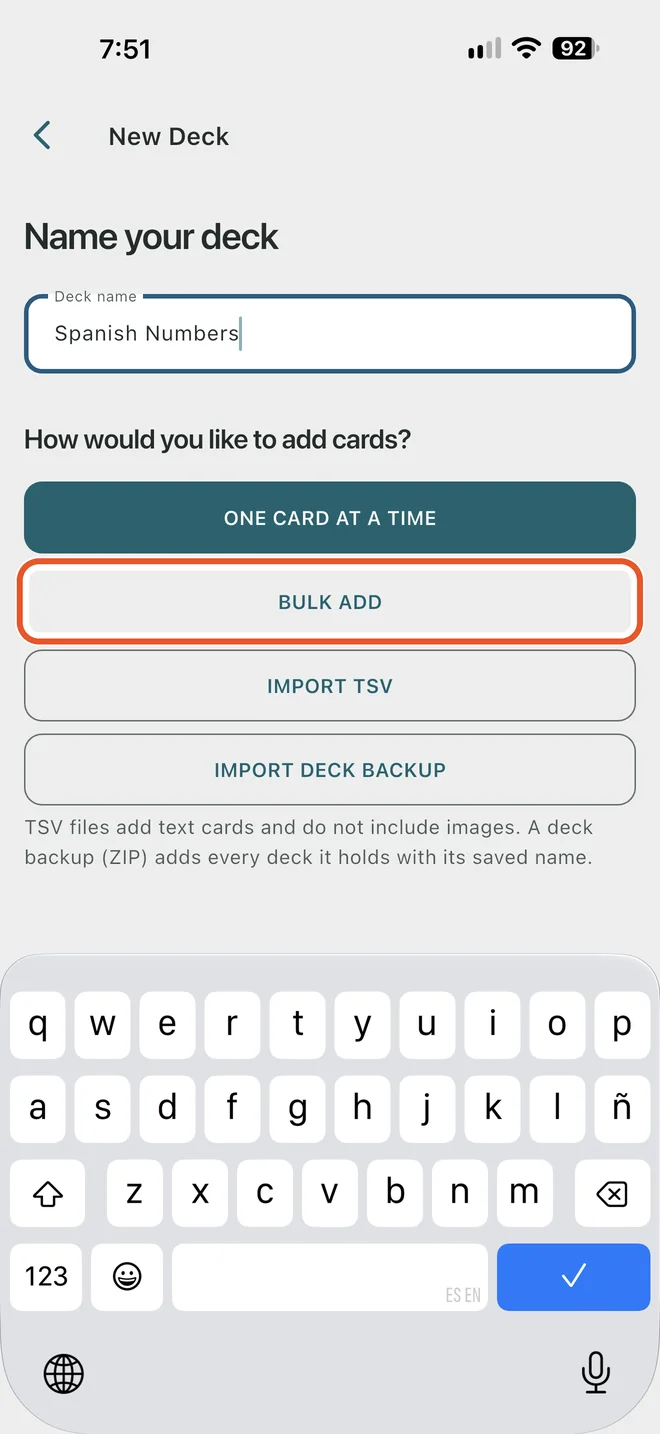 Step 2
Name your deck, then tap BULK ADD
Type a name, such as Spanish Numbers. Under “How would you like to add cards?”, tap BULK ADD.
-
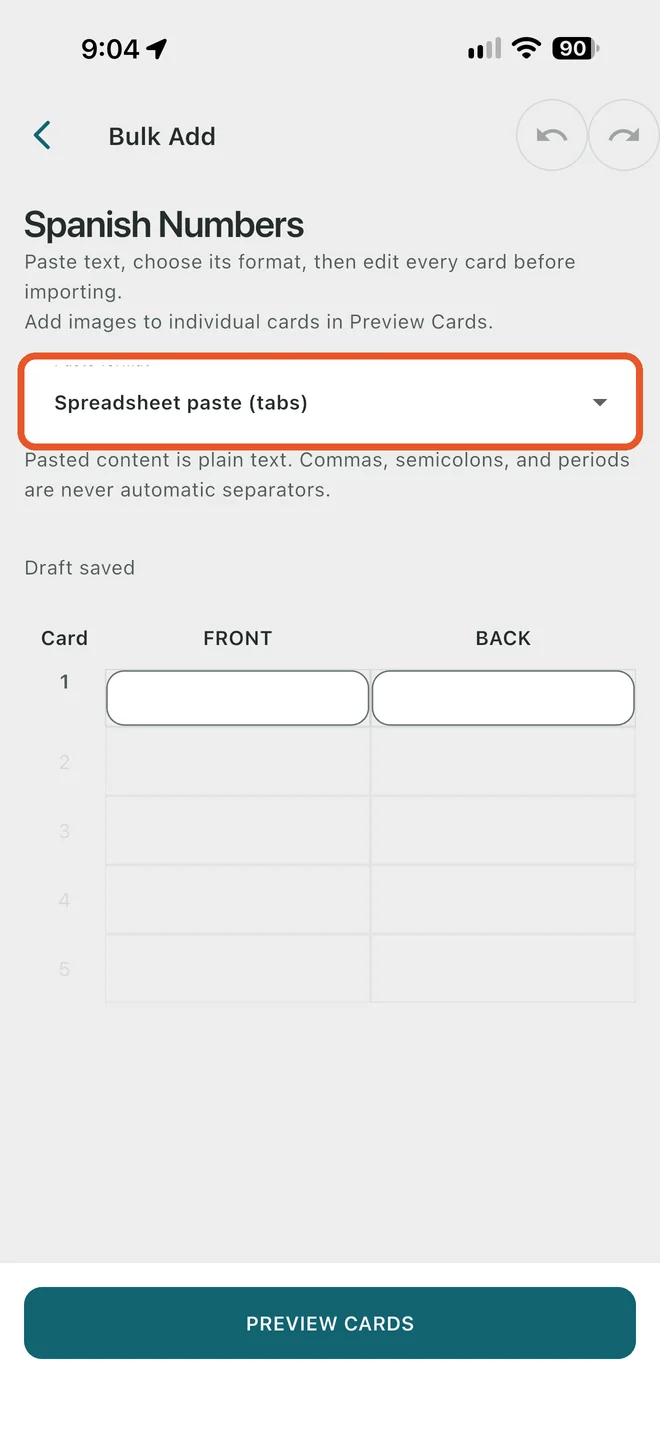 Step 3
Check the paste format
Bulk Add opens with Paste format set to Spreadsheet paste (tabs). That’s the one you want, so leave it as it is.
-
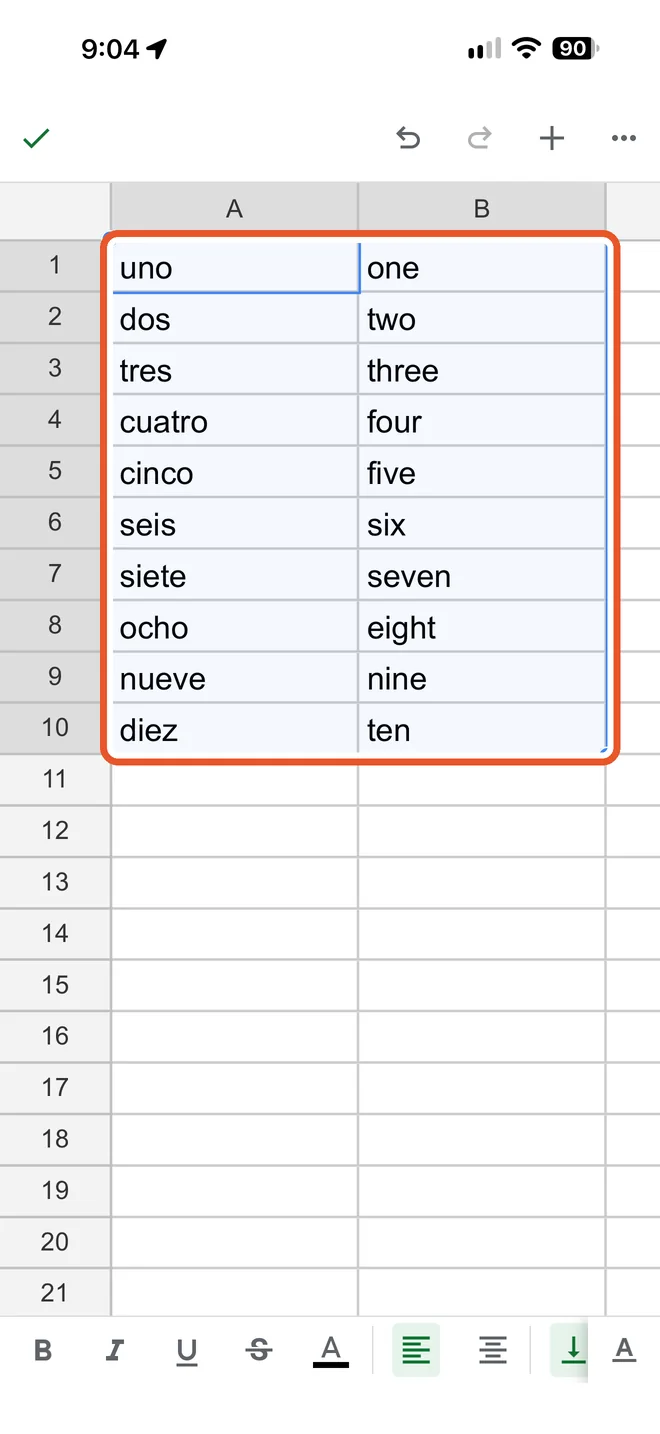 Step 4
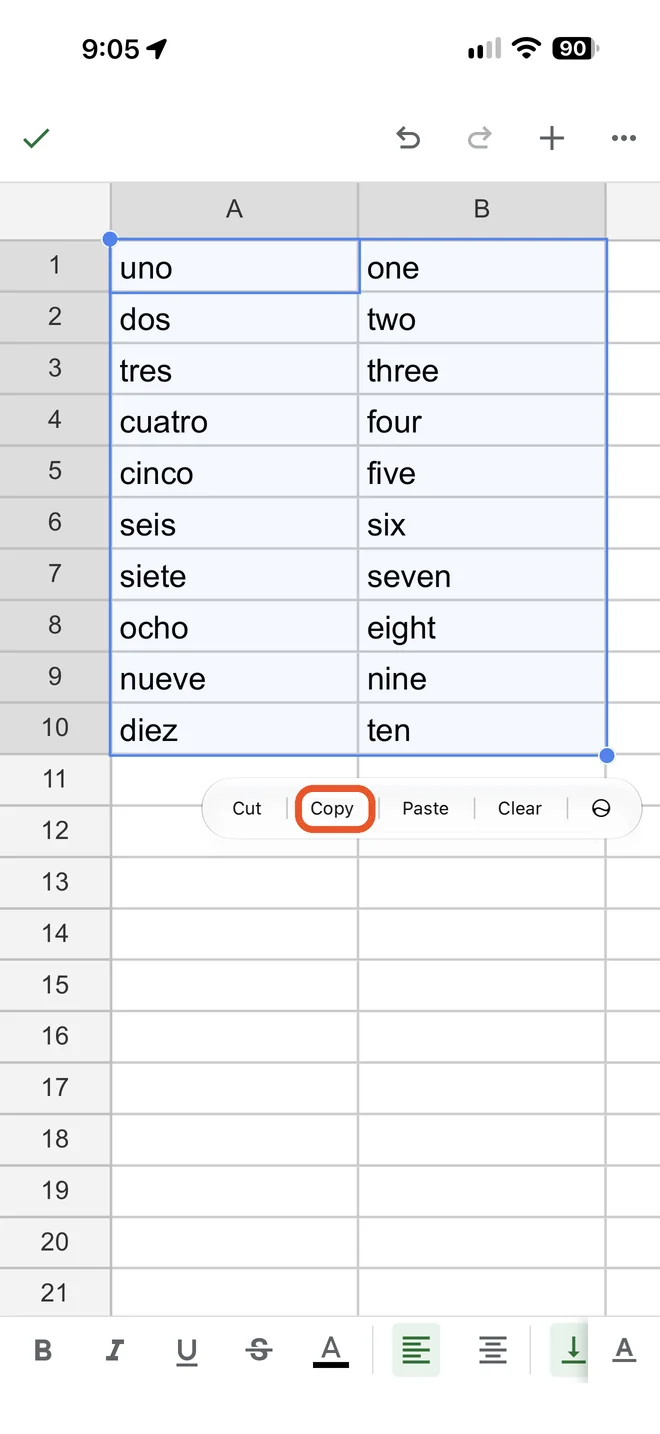
Select two columns in your spreadsheet
Open your spreadsheet app, such as Google Sheets, Excel or Numbers. Put the fronts in column A and the backs in column B, one card per row. Then select the cells. Leave out any header row, or it becomes a card.
-
 Step 5
Copy the cells
Tap the selected cells and choose Copy.
-
 Step 6
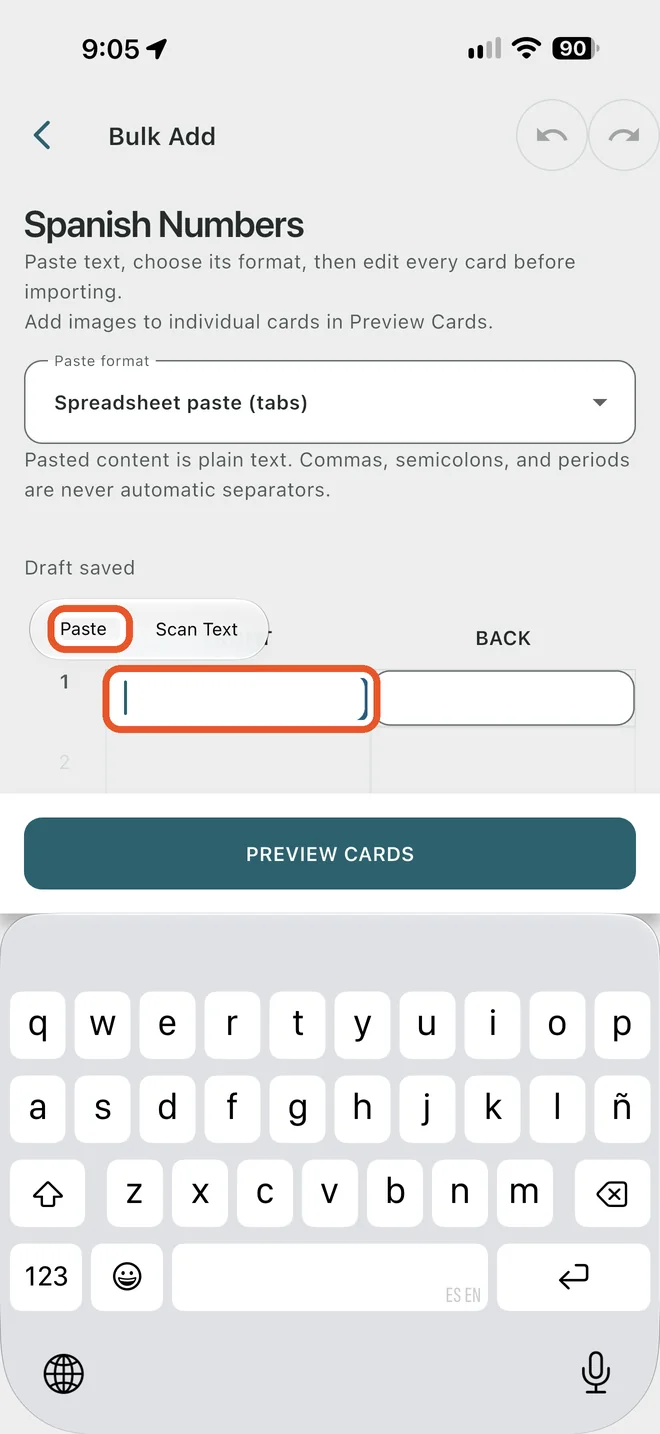
Paste into the first FRONT box
Go back to Knewly. Tap the first FRONT box, then tap it again and choose Paste. Paste only into that first box; Knewly fills in every row for you.
-
 Step 7
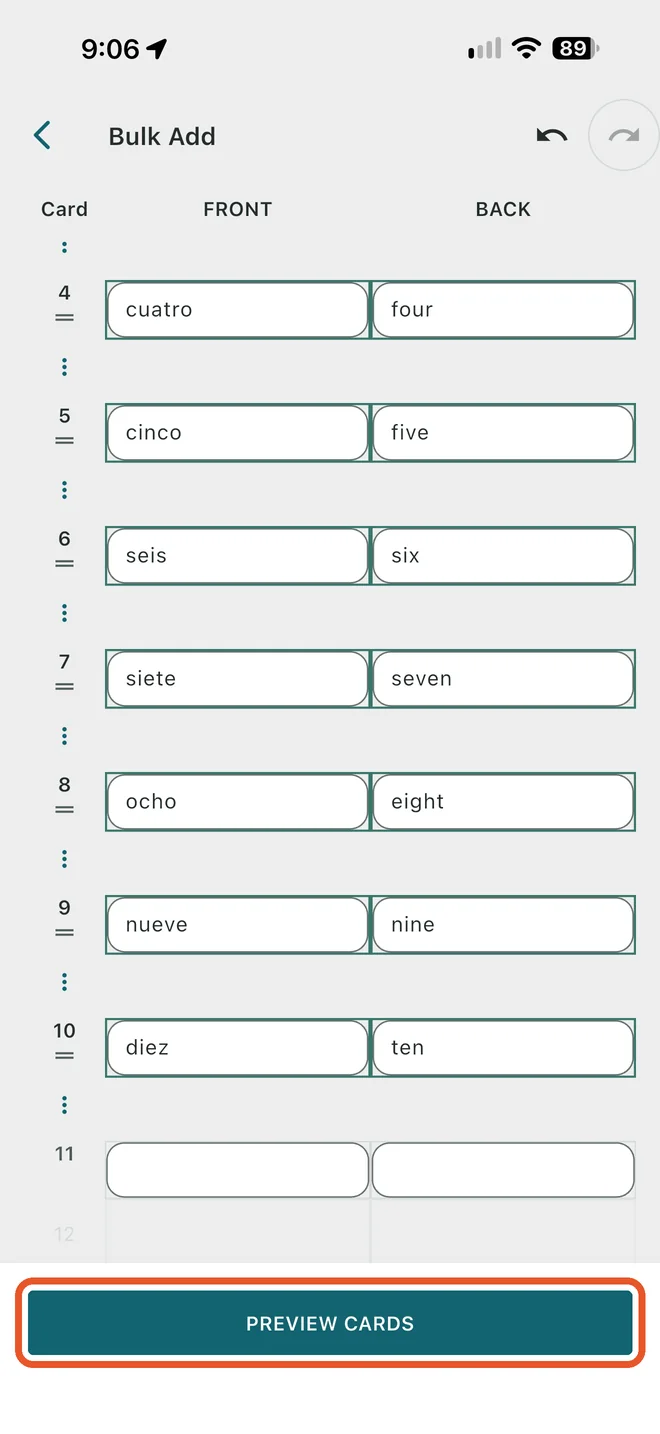
Check the rows, then tap PREVIEW CARDS
Each spreadsheet row becomes a card, with the front and back in their own boxes. Fix any typos right here, then tap PREVIEW CARDS.
No spreadsheet? You can also type straight into the FRONT and BACK boxes on this screen. A new empty row appears as you go.
-
 Step 8
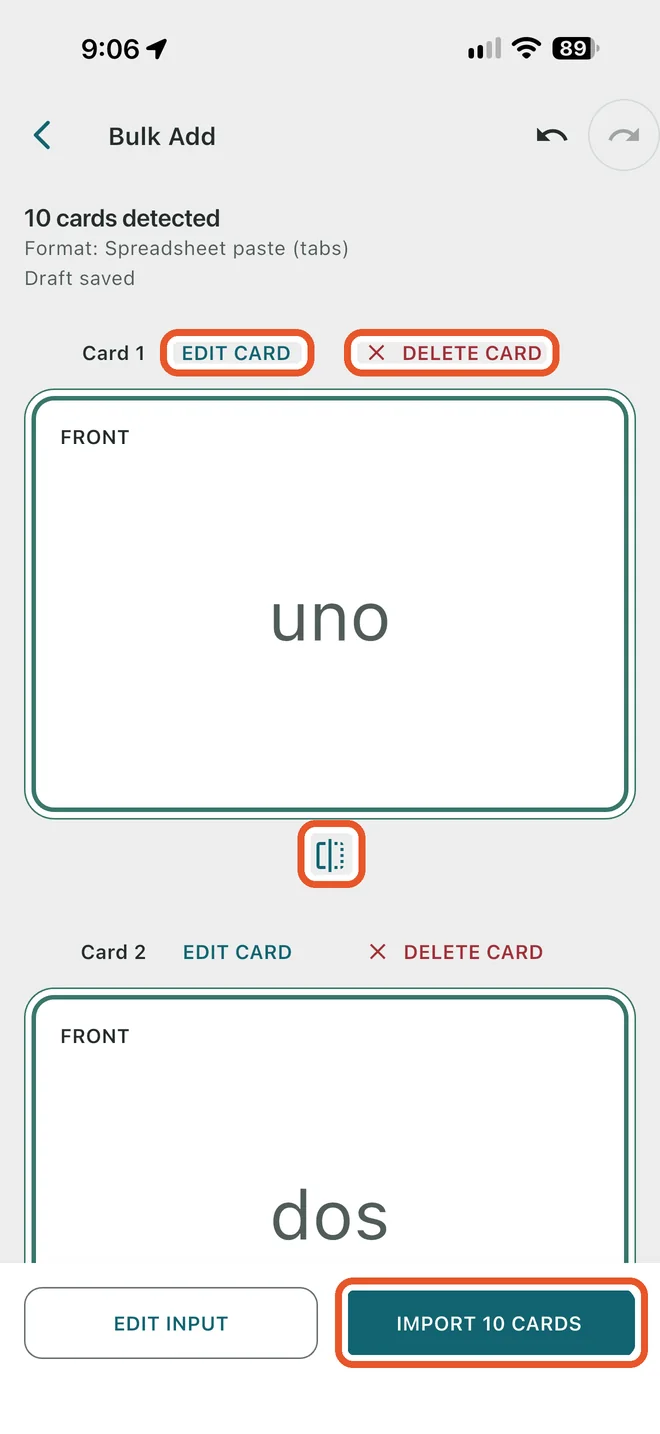
Review your cards, then IMPORT
Knewly shows how many cards it found. Tap a card’s flip button to see its back, EDIT CARD to change it, or DELETE CARD to remove it. When everything looks right, tap IMPORT 10 CARDS.
This is also where you add pictures: tap EDIT CARD, then ADD IMAGE. To fix the pasted text instead, tap EDIT INPUT.
-
 Step 9
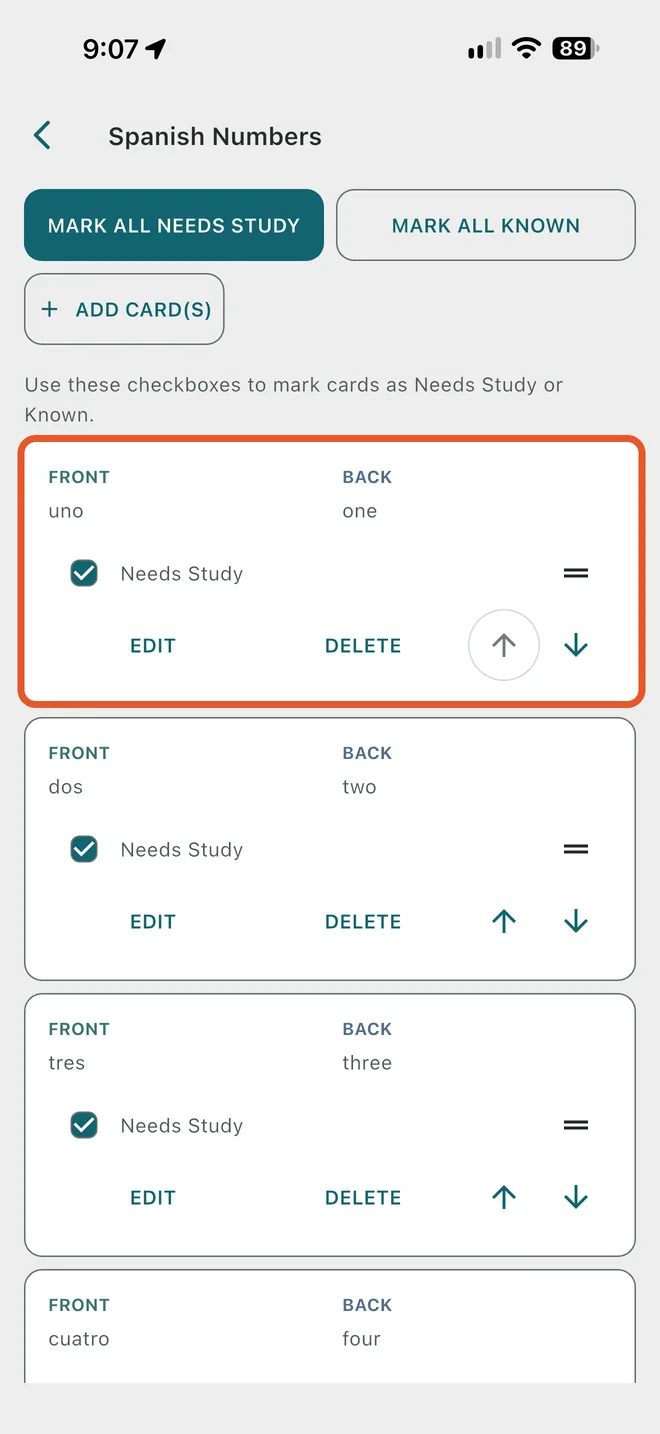
Your cards are saved
Knewly creates the deck and opens it, showing every card with its front and back.
-
 Step 10
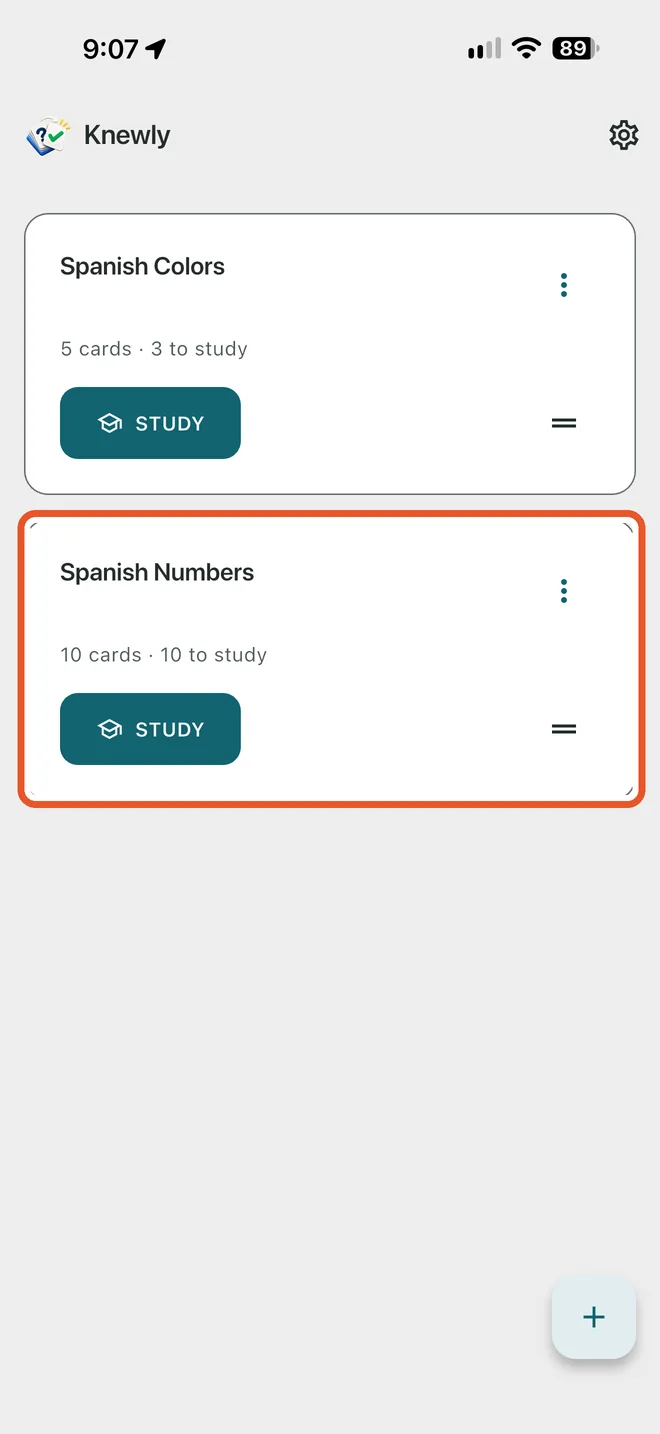
Find your deck on the Home screen
Go back to Home. Your new deck shows its card count. Tap STUDY whenever you’re ready.
Part 2
Add more cards to a deck you already have
-
 Step 11
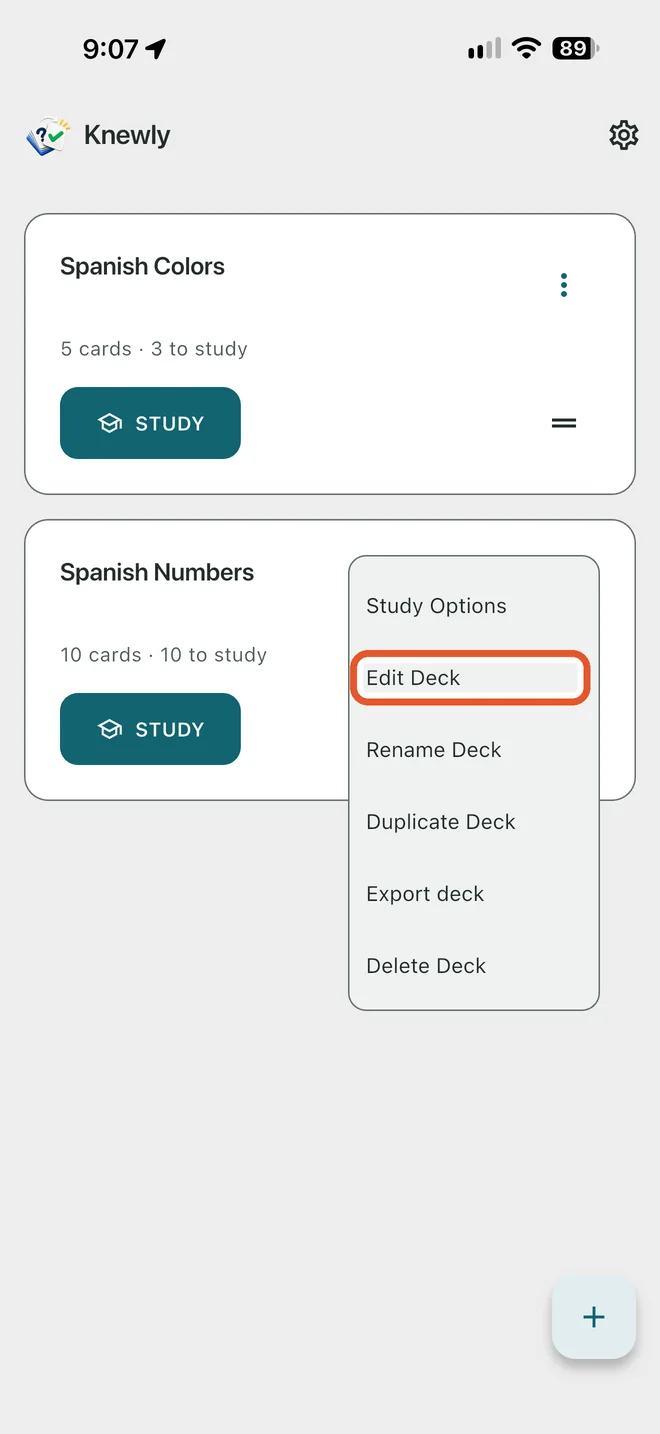
Open Edit Deck
On the Home screen, tap the ⋮ menu on your deck, then tap Edit Deck.
-
 Step 12
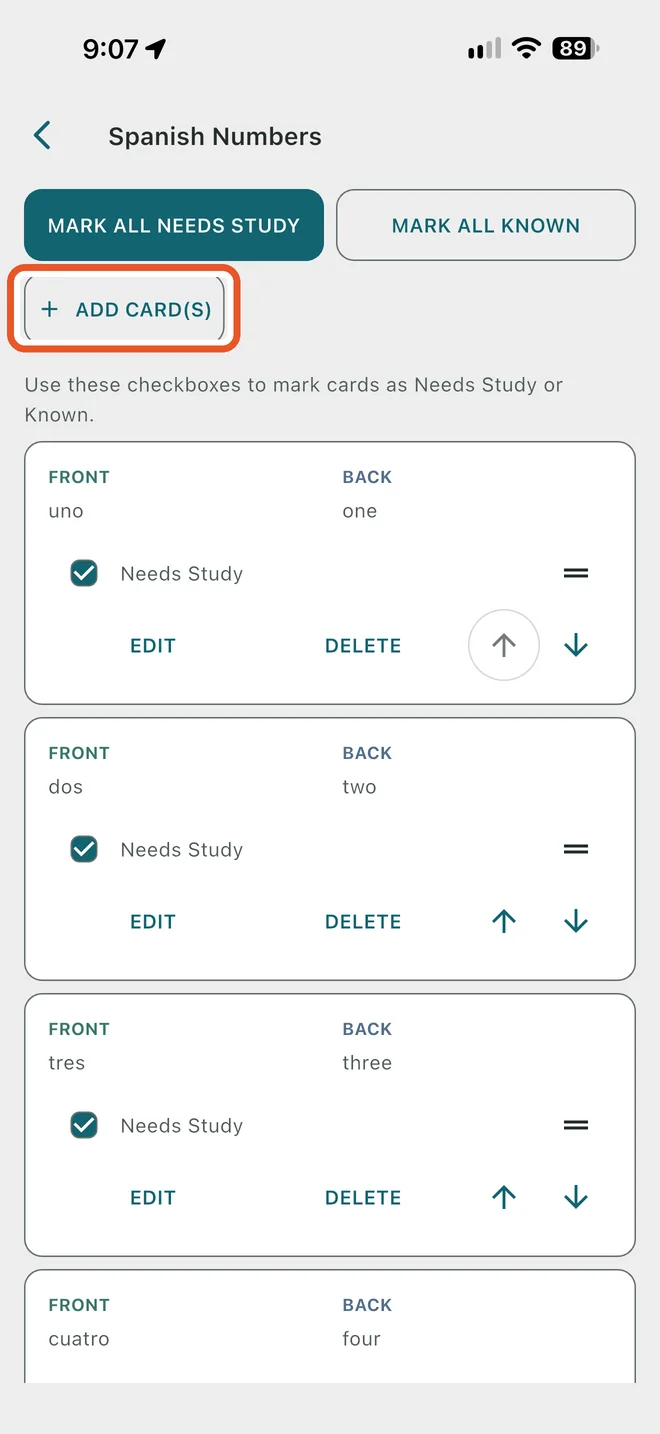
Tap ADD CARD(S)
At the top of the deck, tap ADD CARD(S).
-
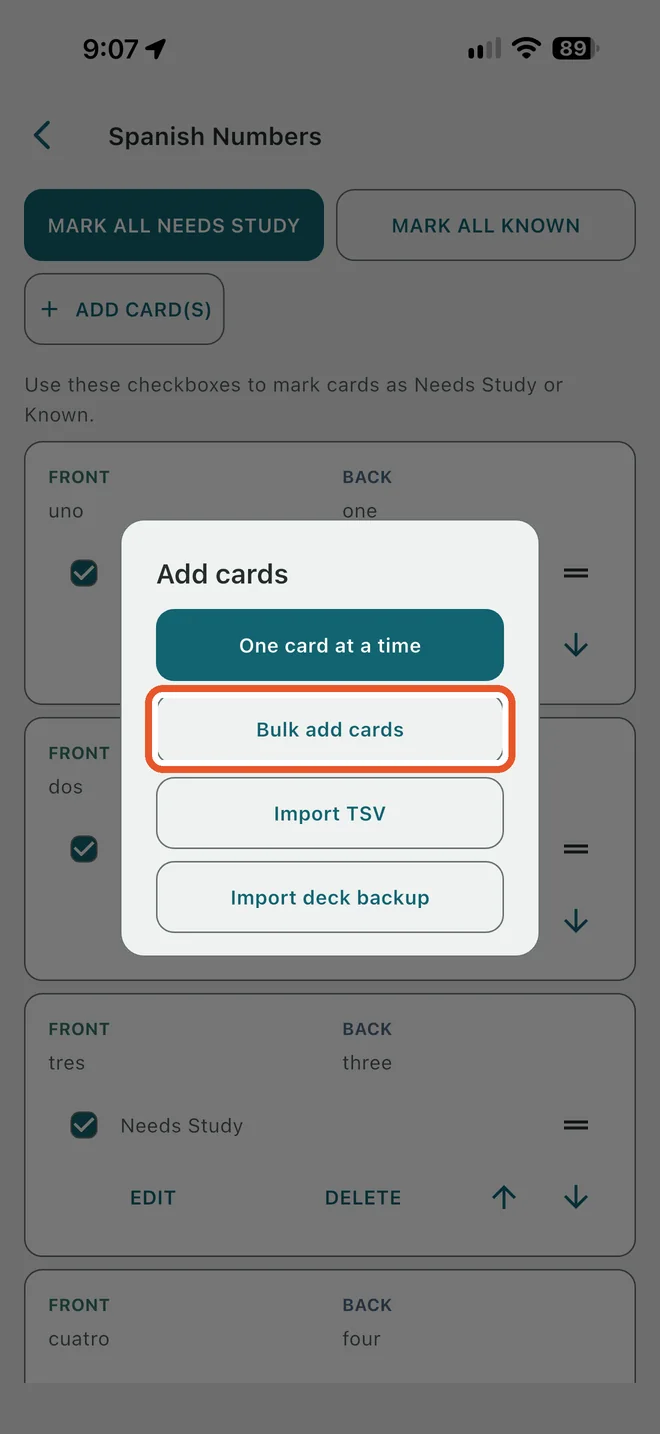 Step 13
Choose Bulk add cards
Tap Bulk add cards.
-
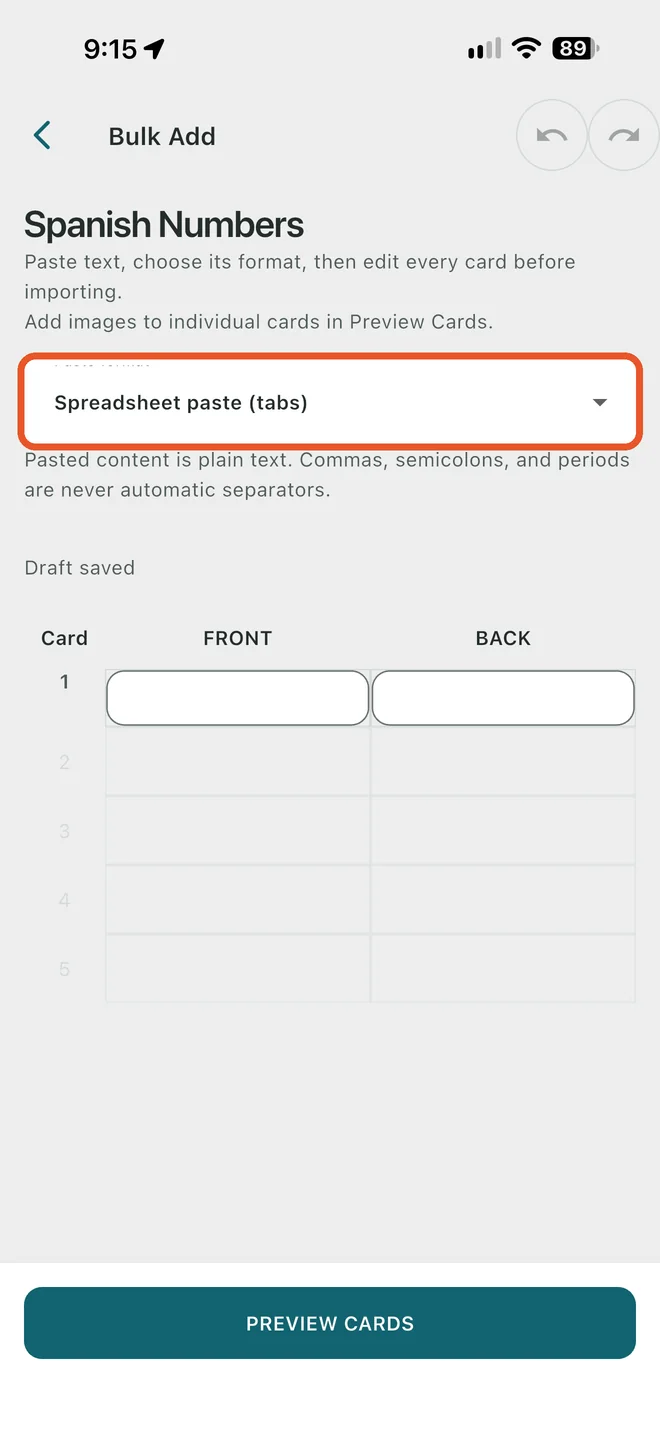 Step 14
Keep Spreadsheet paste (tabs)
Bulk Add opens for this deck, again set to Spreadsheet paste (tabs).
-
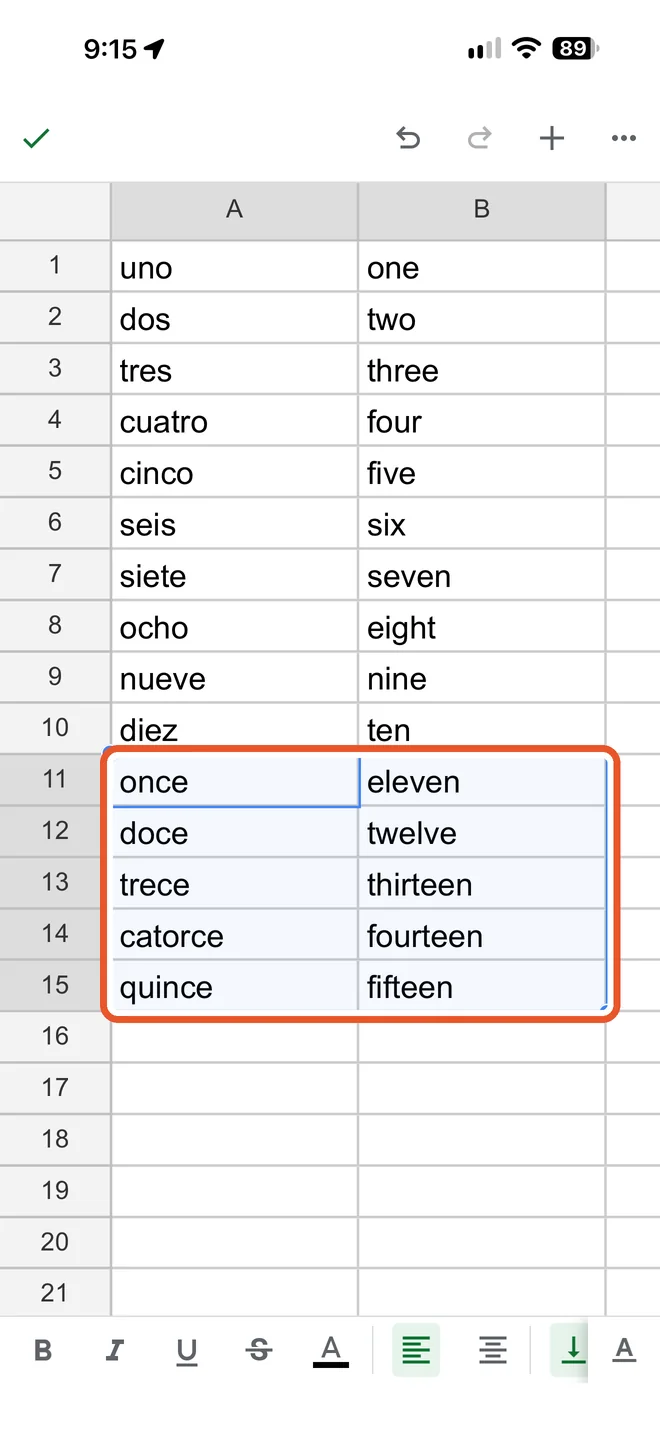 Step 15
Select only the new rows
In your spreadsheet, select just the rows you want to add. Here that’s rows 11 to 15, once to quince.
-
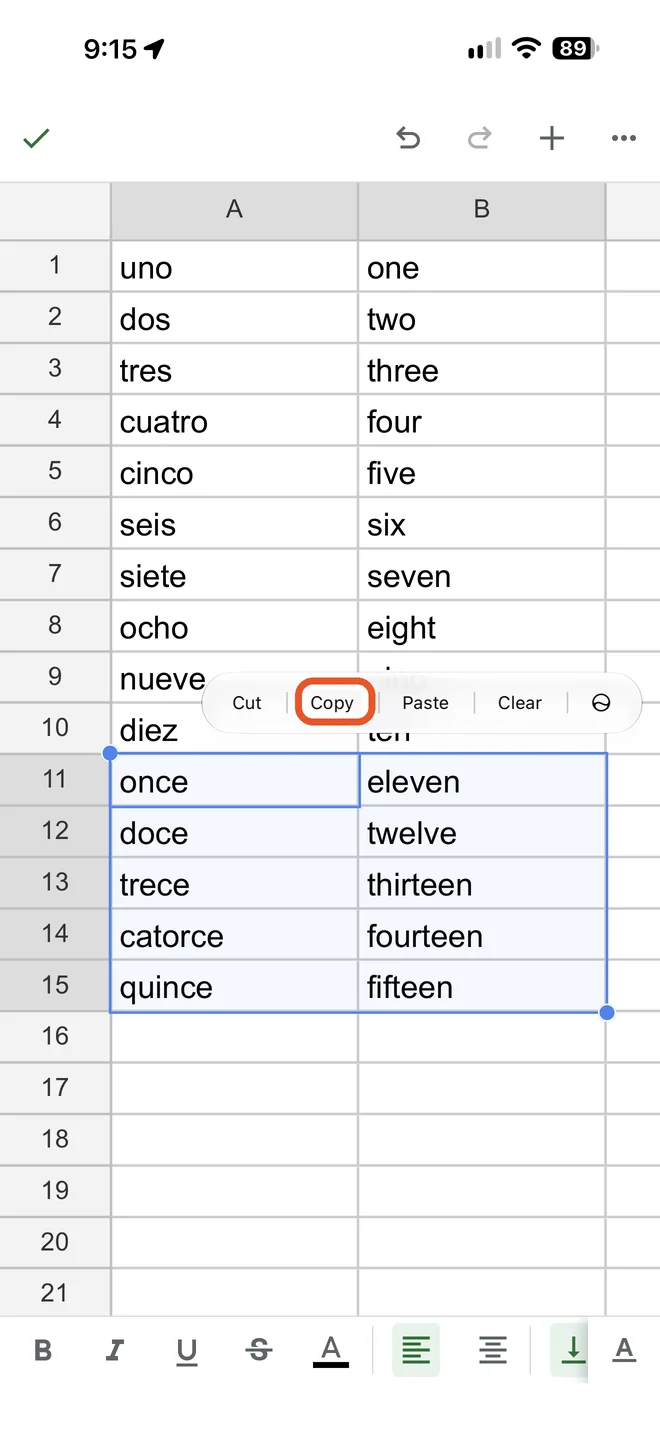 Step 16
Copy them
Tap the selection and choose Copy.
-
 Step 17
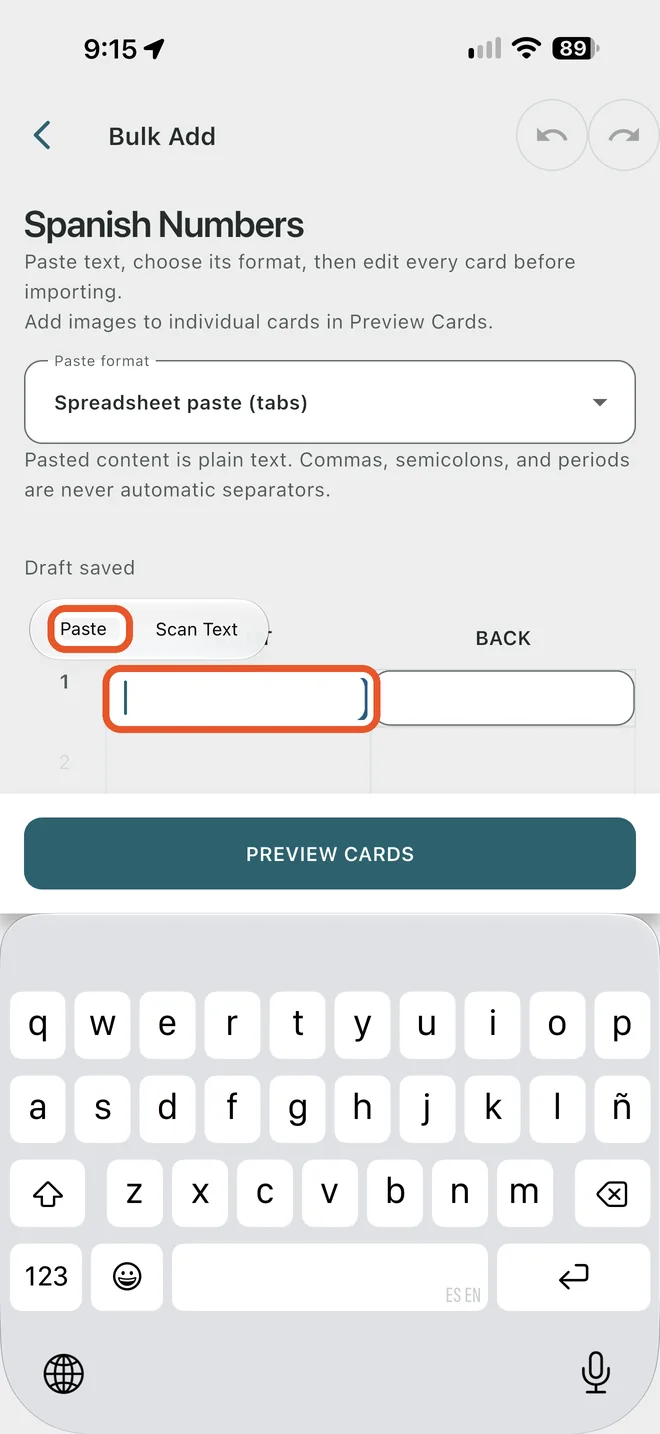
Paste into the first FRONT box
In Knewly, tap the first FRONT box and choose Paste.
-
 Step 18
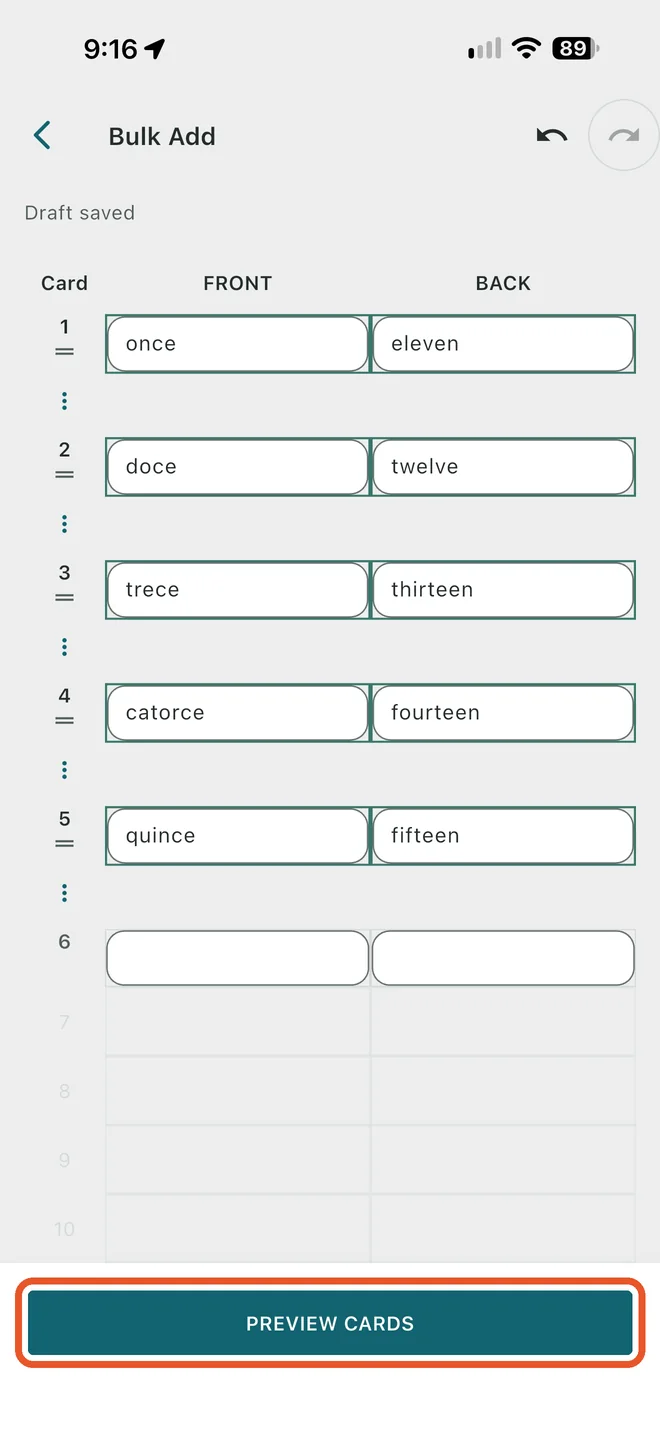
Tap PREVIEW CARDS
Check the five new rows, then tap PREVIEW CARDS.
-
 Step 19
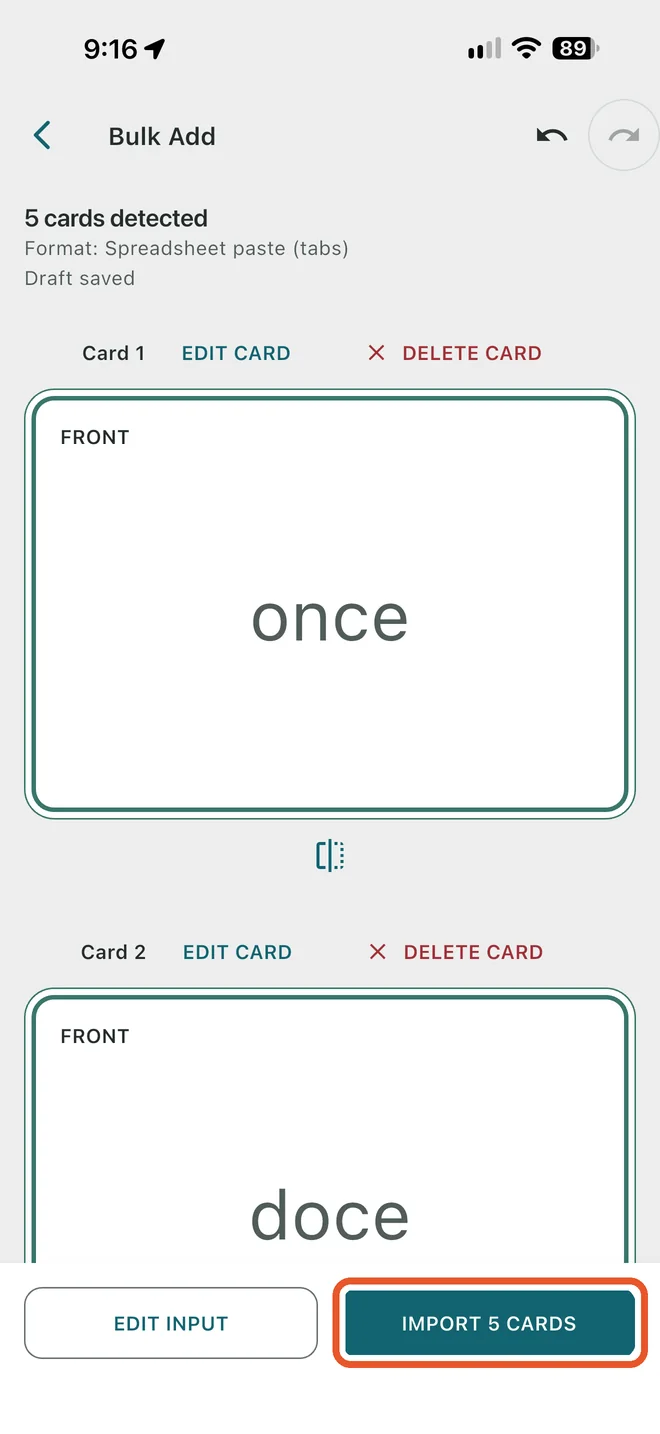
Tap IMPORT 5 CARDS
Review the new cards the same way as before, then tap IMPORT 5 CARDS.
-
 Step 20
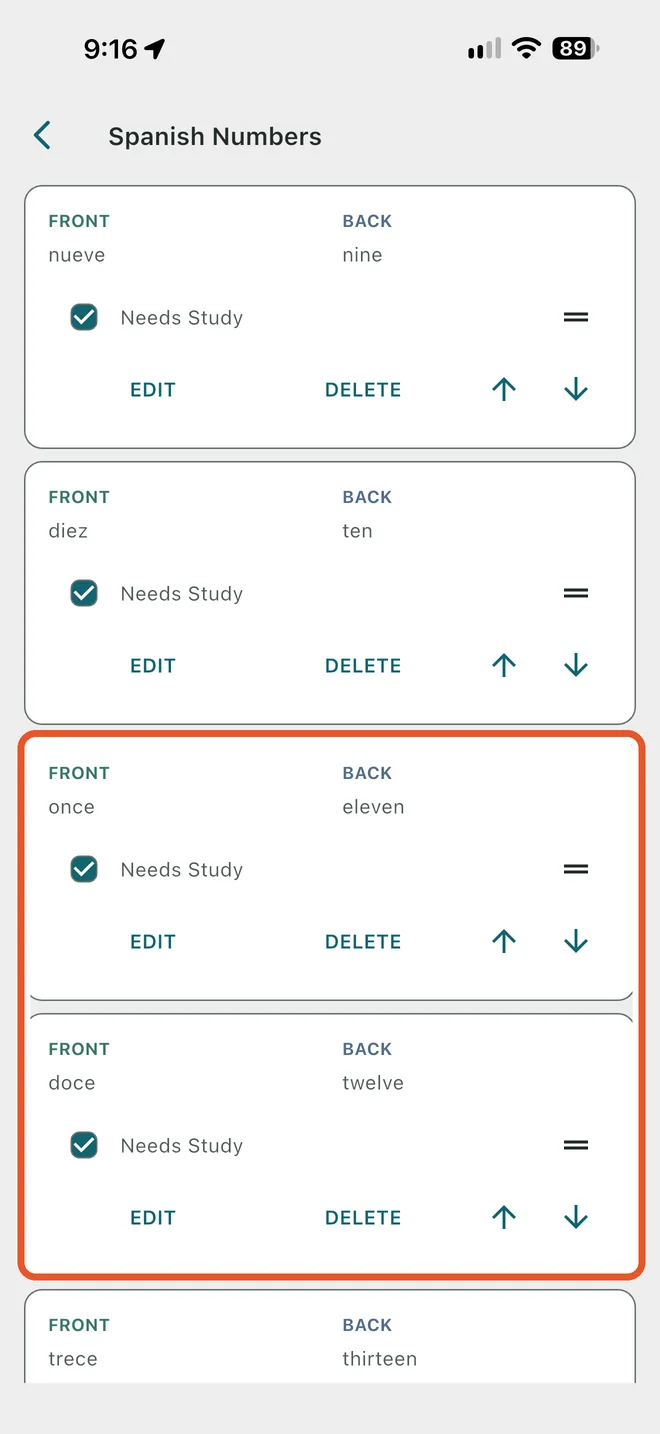
The new cards join the deck
The new cards are added after the ones already in the deck. Your existing cards and their study progress stay as they were.
-
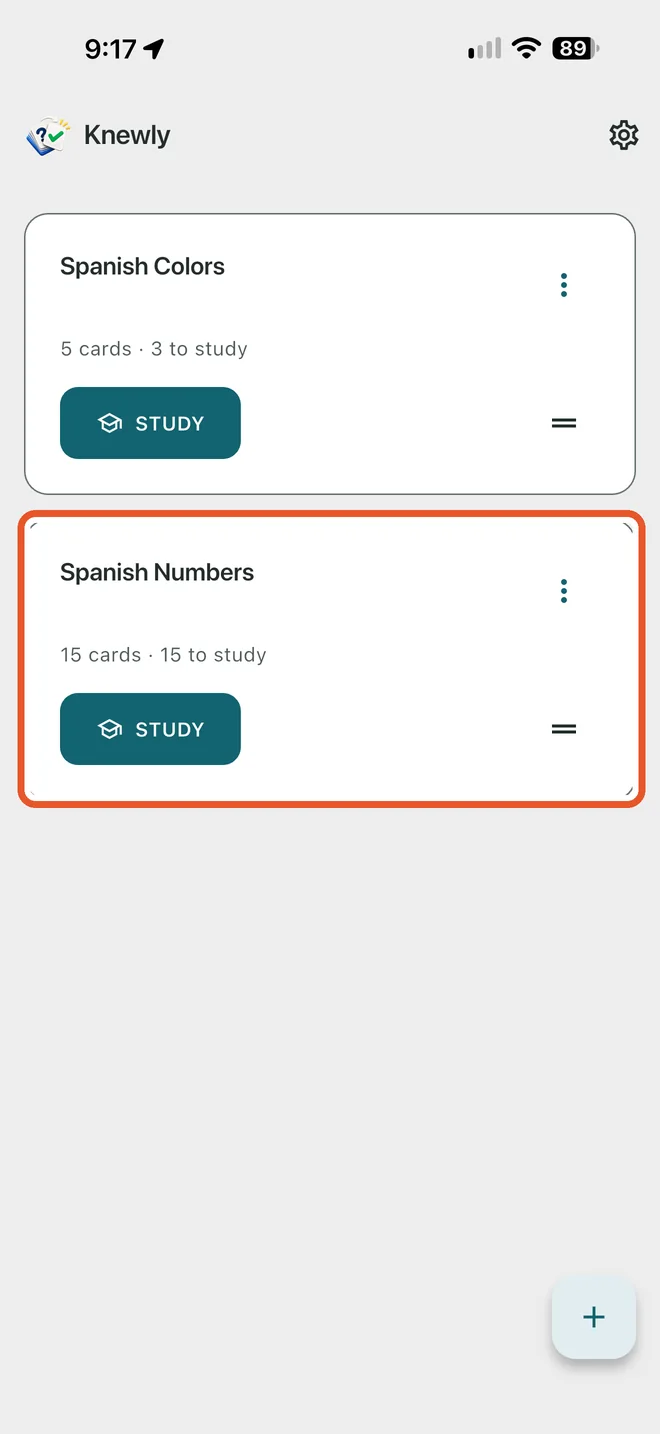 Step 21
Check the new card count
Back on the Home screen, the deck now has 15 cards.
If something looks wrong
Quick fixes
Everything landed in the FRONT column
Your text wasn’t copied with tabs between the columns. Copy the cells again straight from the spreadsheet app, not from a document or note, and paste into the first FRONT box. To paste two separate lists instead, change Paste format to Paired lists.
My first card says “Front” and “Back”
Your selection included the header row. On the Preview Cards screen, tap DELETE CARD on that card before importing.
Knewly says I can’t add another deck
Knewly Free includes up to three decks. Add the cards to a deck you already have (Part 2), or delete a deck you no longer need.
Can I import a file instead?
Yes. Save your spreadsheet as a tab-separated (TSV) file, then in Knewly go to Settings → Backup and Restore → Import TSV as new deck. Our free starter decks come in this format.
Need more help?
That’s Bulk Add.
See more guides in the Help Center, or email support@midnightmonstera.com.
Back to the Help Center